Check Computer Specs and Status with Sliprail System Pulse
Sliprail System Pulse brings your computer's configuration and a one-time snapshot of its running state onto one page. When you want to check what hardware you have and how it is being used, you can get a compact overview straight from the Sliprail launcher instead of piecing it together across several windows.
Open System Pulse from the launcher
System Pulse is built into Sliprail for Windows and macOS. Open the Sliprail launcher with your global hotkey, type SystemPulse, select the matching command, and press Enter. Once collection finishes, the result is ready to read. You do not need to generate an AI summary to see it.
Read the configuration and status together
Start with the resource cards at the top. The processor model appears below the sampled CPU usage, while the neighboring cards show used and total memory, system-disk capacity, and swap usage. Hardware details and the sampled readings sit together, so you can see both the available resources and how much was in use.
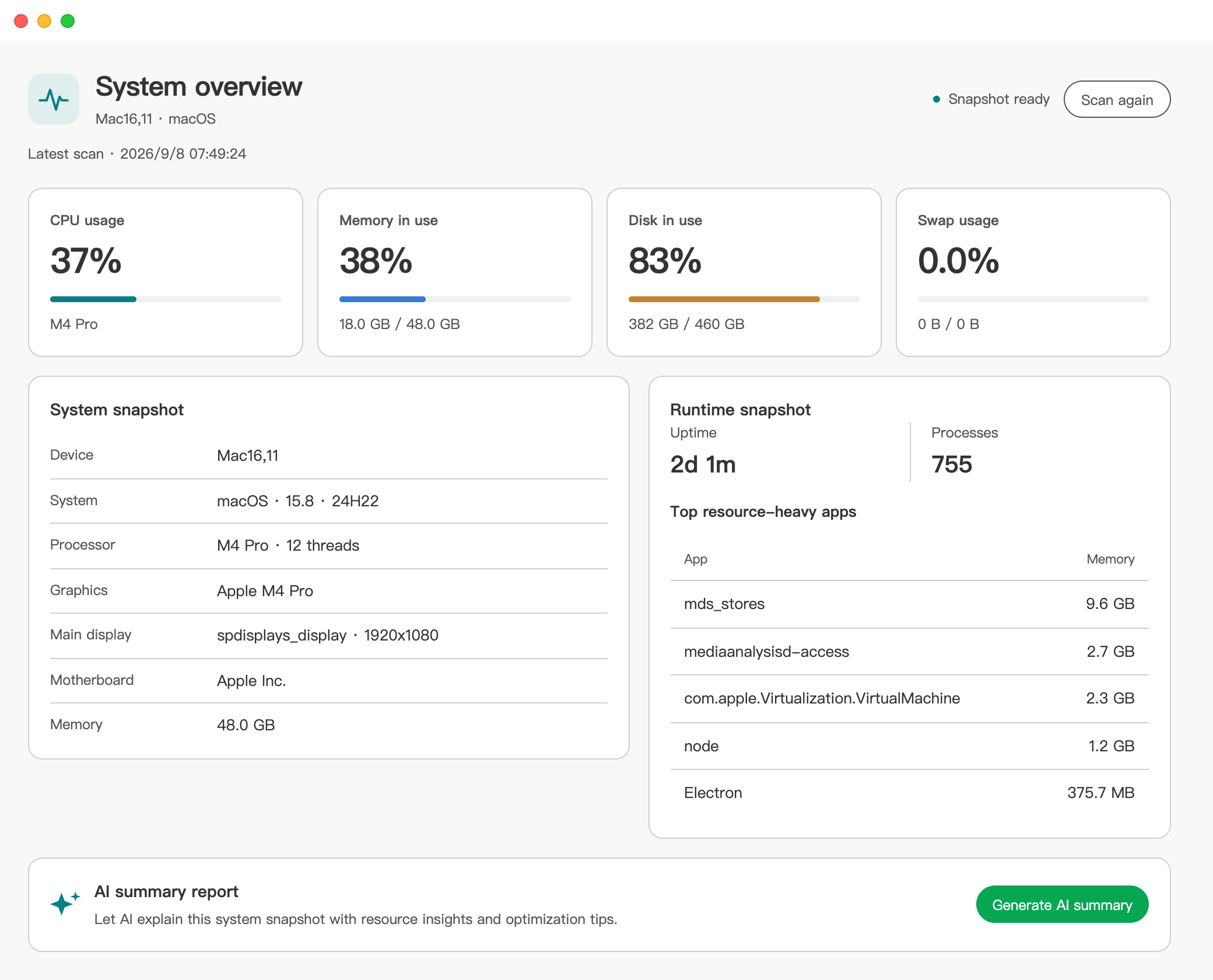
Further down, the system profile brings together the operating system and more hardware details, such as graphics and the main display, when the system provides them. The result also includes the collection time, uptime, process count, and up to five processes with the largest resident-memory footprint. This gives you context for the overview without having to open a separate hardware inventory first.
The disk card shows how much capacity is used on the system disk, not live reads and writes. Likewise, a high CPU or memory reading describes the sampled moment, not a fault on its own.
The result does not keep refreshing, and System Pulse does not build a performance history. Click Scan again when you want a new snapshot. If you need to follow a changing workload or watch live disk activity, use Task Manager on Windows or Activity Monitor on macOS for continuous monitoring.
Choose whether to ask AI for a summary
You can stop at the snapshot or click Generate AI summary for a plain-language recap. This is an optional next step, not a requirement for viewing your computer's configuration and status.
Only that action submits the collected snapshot through Sliprail's AI request flow for processing. The summary is not a fully local operation, so trigger it only if you are comfortable having the snapshot processed this way.
An AI summary can help explain unfamiliar terms and organize the information you have just seen. It is not a diagnosis or a repair tool. Neither System Pulse nor its summary can determine the cause of a slowdown, diagnose hardware faults, or optimize your computer.
Keep a quick overview within reach
System Pulse makes a configuration check part of your launcher workflow. For help setting up that workflow, follow the Sliprail Getting Started guide. If you have not installed Sliprail yet, download the desktop app for Windows or macOS and run SystemPulse to see your first snapshot.