End Frozen Apps on Windows and macOS With Sliprail Process Killer
Sliprail Process Killer lets you find a window or process by name and end it from the keyboard on Windows and macOS. Search by window title, app name, or process name to narrow the list, then check the target's name and PID before acting.
Use it when an app will not close normally or a background process needs to stop.
When Process Killer fits
Process Killer works well in situations like these.
- A full-screen or unresponsive window makes mouse navigation difficult
- Several windows belong to the same app and the window title is the clearest way to identify the one you need
- A background process has no useful window, but you know its process or parent process name
Find the target from the launcher
Open the launcher with your configured Sliprail hotkey. The defaults are Win + Space on Windows and Option + Space on macOS. Type ProcessKiller, select Process Killer, and press Space to enter its target list.
Continue typing part of the window title, app name, or process name to narrow the results. Use the arrow keys to select a target and check its displayed name and PID. Window results show the title and can also match the owning app name. Process results show the process name and may include command or parent process details to help distinguish similarly named entries.
The example below uses a normally running iTerm window. Searching for zsh iTerm narrows the list to the window titled -zsh, with its owning process's PID underneath.
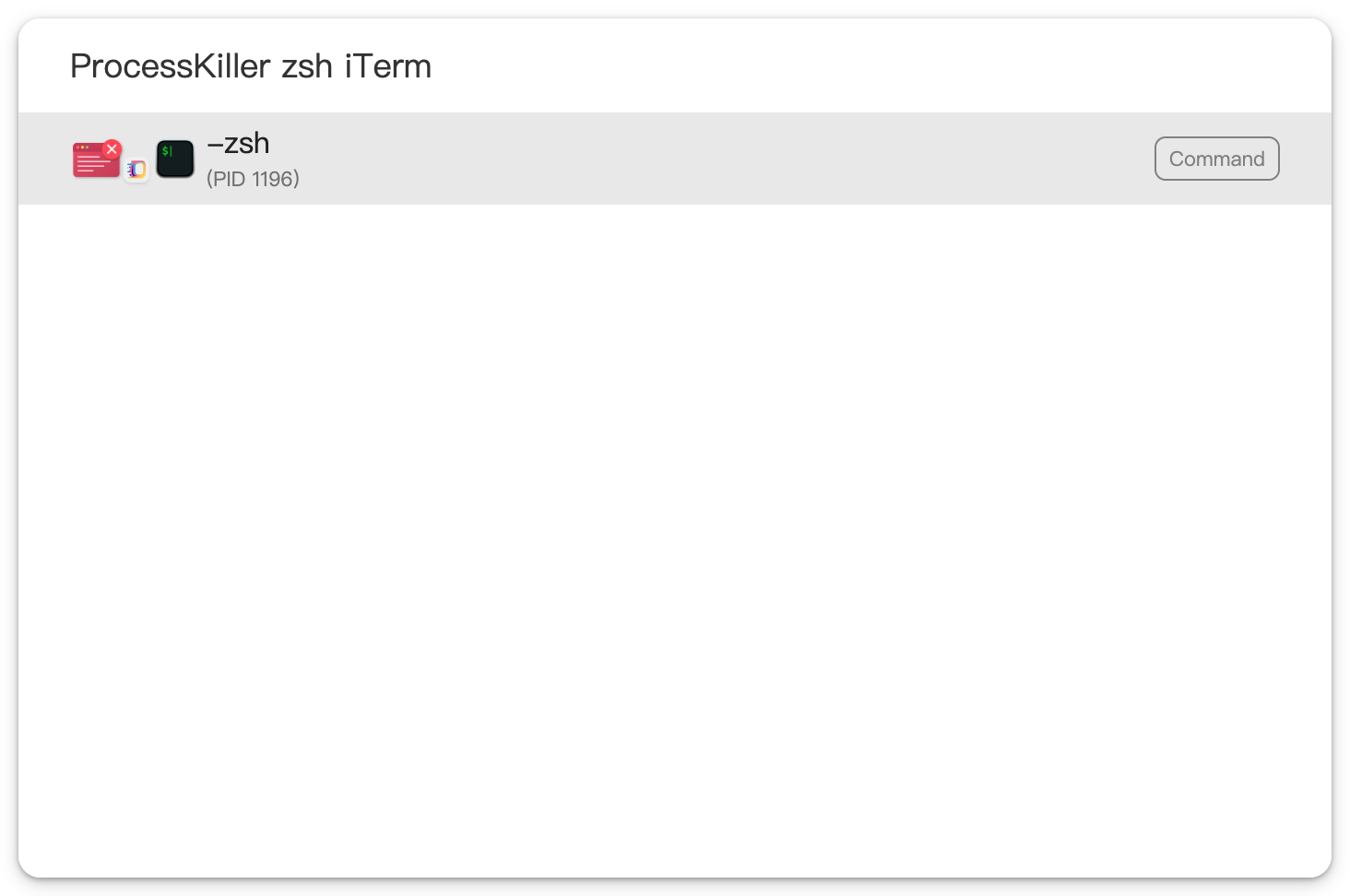
Once you have checked the target and intend to force it to stop, press Enter to end it immediately. If you press Enter on ProcessKiller without first pressing Space, Sliprail instead opens Task Manager on Windows or Activity Monitor on macOS.
How it relates to native system tools
Task Manager and macOS Force Quit remain useful built-in options. Force Quit focuses on visible apps, while Activity Monitor shows processes in more detail. Sliprail does not diagnose why an app froze or replace those diagnostic views. Its keyboard search helps you narrow a list using a name you already know, rather than scanning every entry.
What to know before pressing Enter
Try the app's normal Quit or Close action first, and save or recover what you can while it still responds. Force-ending a process can bypass its normal shutdown flow, discard unsaved documents, and interrupt uploads, file writes, renders, or terminal jobs. It cannot be undone. A window belongs to a process, so ending it from a window result may also close other windows that share that process.
System permissions still apply. On Windows, Sliprail running with standard permissions may not be able to end an administrator-level process. Run it as Administrator only when needed, and read the Windows administrator permission guide before making that a permanent setting. On macOS, protected processes and those owned by root or another user may not appear in the list, and the system may refuse to end them. Process Killer does not bypass these protections.
Sliprail hides known critical system processes and its own process from the target list, but this does not mean every remaining target is safe to stop. If you do not recognize a target, leave it running and inspect it with the operating system's tools first.
Process Killer is available in the Sliprail desktop app for Windows and macOS, not in Sliprail Web. If you have not installed it yet, download the Windows or macOS desktop app.